

Analyzing Disk Space Usage: ncdu, du
When working with a server, it is important to keep an eye on disk space usage. A full disk can cause errors on your VPS, such as a 502 error, files being lost during editing, and database corruption. To avoid such problems, regularly check disk space usage, delete unnecessary files, and expand the disk when needed.
To analyze disk space usage on a server, you can use the ncdu and du utilities. These tools make it easy to identify which files and directories take up the most disk space. In this article, we will look at the ncdu utility.
ncdu
The ncdu utility is a convenient tool for analyzing disk space usage. Its pseudo-graphical interface makes it simple and intuitive to use.
ncdu is not preinstalled on all Unix distributions, but it is easy to install with these commands:
# For Debian / Ubuntu:
apt install ncdu

# For CentOS:
yum install ncdu
If the disk is completely full and ncdu cannot be installed, you can use the du utility (see below) to delete unnecessary files and free up some space before installing ncdu.
To scan and analyze a specific directory with ncdu, run the following command:
ncdu directory_nameFor example, to analyze the root directory, run:
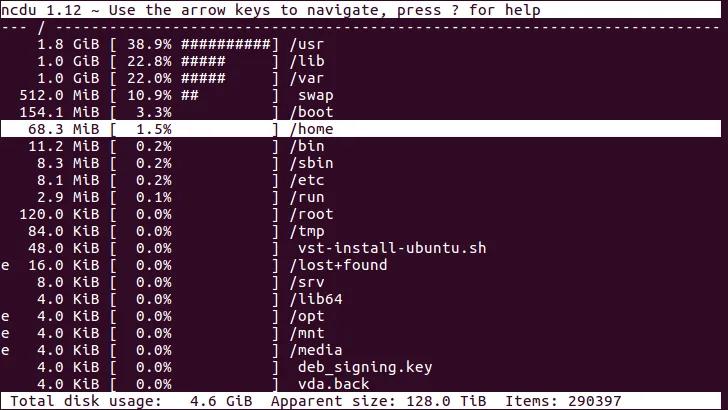
ncdu /Output Format
The # characters help you see which files and directories take up the most disk space.
The leftmost column may contain additional flags (for example, the e flag in the screenshot above):
- ! - an error occurred while reading the directory;
- . - an error occurred while reading a subdirectory, so the size may be incorrect;
- < - the item is excluded from the count (when using the --exclude option);
- > - the item is on a different file system;
- @ - the item is neither a file nor a directory (a symbolic link, a socket);
- H - the item has already been counted (a hard link);
- e - an empty directory.
Navigation
Use the arrow keys (up and down) to move between directories.
To enter the selected directory, press the right arrow or Enter.
To go back to the previous directory, press the left arrow.
Available Interface Functions
You can control the output with the following keys:
n - sort items by name (ascending and descending);
s - sort items by size (ascending and descending);
g - toggle between the graph (####) and the percentage of space used;
a - toggle between the apparent file size and the space the files occupy on disk;
e - show/hide hidden files and directories;
? - show brief help;
d - delete the selected item (confirmation required);
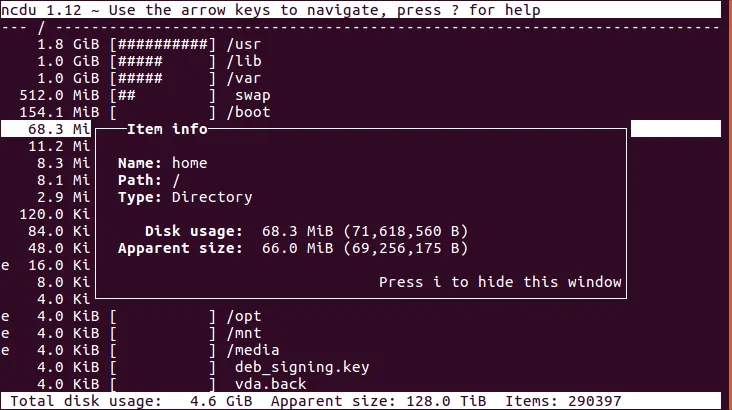
i - show information about the selected item;
q - quit.
ncdu Options
When using the utility, you can also use various ncdu options:
-h (for example, ncdu -h) — shows brief help;
-q — runs in "quiet mode" and refreshes the data every 2 seconds. By default, the display is refreshed 10 times per second. This mode reduces the amount of data transferred over remote connections;
-x — counts only files and directories on the same file system when scanning. For example, if the home/user/site.com directory contains files and directories mounted from another directory on a different disk (/mnt/disk2/site.com), by default ncdu will count the /home/user/site.com directory as taking up space on the main disk, even though it is located on disk2. The -x option lets you get an accurate picture of the main disk;
-r — "read-only" mode, which prevents files from being deleted;
--exclude — lets you exclude a file or file type from the disk space count. For example:
ncdu --exclude=/path/to/directory/*what_to_exclude*For example:
ncdu --exclude=/home/user/*.html*-o — saves the results to a file:
ncdu / -o path/to/file.txdu
The du utility (short for disk usage) is included in all UNIX distributions by default and provides general information about disk space usage.
When run, it shows the amount of space taken by each file and directory in the current directory:

du Options
To get sizes in a human-readable format (kilobytes, megabytes, etc.), use the -h option, which we will use in all of the following commands.
- For example, you can start by estimating the size of all directories in the root file system. To do this, use the -s option (to show the total size of each specified directory) and the -c option (to show the grand total):
du -shc /*

- A useful and convenient way to calculate and sort sizes:
du -sch ./*|sort -hr

- To find the size of a specific directory, use the -s option and specify the path to the directory:
du -sh /path/to/directory

- To show the size of all files and subdirectories in a directory, use the -a option:
du -ah /path/to/directory

- To show the total size of all listed items, use the -c option:
du -ch /path/to/directory

- You can use the --exclude option to exclude certain file types from the output.
du -ah --exclude="*what_to_exclude*"For example:
du -ah --exclude="*.html*"

- Another useful option shows the time a file was last modified. To do this, use --time:
du -ah --time /path/to/directorySpecifics
Discrepancies Between du, ncdu, and Your Software
- Sometimes du and ncdu show less used space than the control panel does, or you delete files but your software still reports that there is not enough space.
In such cases, it is useful to run the df command to get file system information (since du and ncdu show the physical space used on disk):
df -h
You will probably see that 100% of the space is in use.
This can happen because a deleted file remains open by some running process, so the file system still counts it toward the total used space.
To solve this problem, find out which processes are still using deleted files:
lsof | grep '(deleted)'Then restart those processes:
service process_name restartFor example, the screenshot below shows the httpd process, which needs to be restarted:

- If the control panel, du, and df report free space but your software or the system says otherwise, check the available inodes.

