

Creating New Users
For security reasons, working as the root user on a Linux system is not recommended, since even small mistakes in commands can cause irreversible damage to files and the system.
The best approach is to create an additional VPS user with sudo privileges. The sudo mechanism lets this user perform operations with administrator (root) privileges when needed.
You can also use these instructions to create regular system users (without sudo privileges) — just complete the first three steps.
Creating a user with sudo privileges
1. Create a new user (username in this example) with the following command:
adduser usernameBy default, the new user is added to a group with the same name, and a home directory is created for them.
2. On Ubuntu / Debian, you will be asked to enter the user's password. You need to enter it twice. Keep in mind that password characters are not displayed in the Linux console as you type.
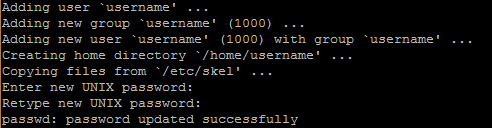
On CentOS, run this command to set the password:
passwd usernameThen enter the password and confirm it.
3. On Ubuntu / Debian, you will also be asked for additional information about the user (such as full name, phone number, and so on). You can enter this information or leave the fields empty by pressing Enter to use the default values. Then press Y to confirm.
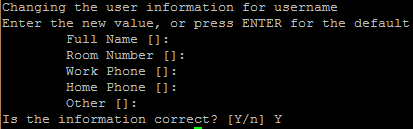
On CentOS, if you need to add this information, run this command:
chfn usernameAt this point, a regular user (without sudo privileges) has been created.
4. To grant the user sudo privileges, add them to the sudo group. You can do this with the following commands.
On Ubuntu / Debian:
usermod -aG sudo usernameOn CentOS:
usermod -aG wheel username5. Test the new user. To do this, switch to their account:
su - usernameThe system will ask for the user's password (the first time you use sudo). After that, you can try running any command with sudo privileges. For example, you can list the contents of the /root directory, which regular users cannot access:
sudo ls -la /rootIf the directory contents are displayed, the new user is working correctly.
If root uses SSH key authentication
If you logged in as root with an SSH key, password authentication for SSH is disabled. To log in successfully, you need to add a copy of your local public key to the new user's ~/.ssh/authorized_keys file. Since your public key is already in the root account's ~/.ssh/authorized_keys file, you can copy this file to the new user's home directory with the cp command and set the permissions with chown.
Copy the entire directory to the new user's home directory:
cp -r ~/.ssh /home/usernameMake the username user the owner of this directory (a group with the same name is also created):
chown -R username:username /home/username/.sshNow you can log in to the server as the new user without a password:
ssh username@your_server_ipIf you need to run a command with administrator privileges, type sudo before the command, for example:
sudo

 command
The first time you use sudo (and periodically after that), you will be asked for the regular user's password.
6. This step is optional, but for better security you can disable remote access for the root superuser. Users will then always have to log in with their own accounts, which lets you track activity on the server, see who made changes, and so on. To disable root access, open the /etc/ssh/sshd_config file:
sudo nano /etc/ssh/sshd_configFind the PermitRootLogin line and replace its current value with:
PermitRootLogin noSave the changes and close the editor (key combination Ctrl X -> Y -> Enter).
Then restart the SSH service with the following commands:
On Ubuntu / Debian:
sudo service ssh restartOn CentOS:
sudo service sshd restartOther user management commands
If you need to add a user to another group, create that group first:
groupadd group_nameOn Ubuntu and Debian, you can also use the addgroup command to create a group:
addgroup group_nameThen add the user to the group with the usermod command:
usermod -G group_name usernameTo change the user's primary group, use the -g option:
usermod -g group_name usernameTo change the user's home directory, use the command:
usermod -d path/to/new_directory usernameTo get information about a user, use the command:
id usernameThe output will look something like this:
uid=1000(username) gid=1000(username) groups=1000(username),27(sudo)You can change the user's password with the command:
passwd usernameTo view a list of all users, use the command:
cat /etc/passwdTo get just the list of user names, without additional information, use:
sed 's/:.*//' /etc/passwdTo see which users are currently logged in, use the w command.
You can delete a user with the command:
deluser usernameTo delete a group, use:
delgroup group_name

