

OpenVPN Configuration
If you need to set up remote access to work servers, for example, to let employees work remotely and give them access to the corporate network and internal resources from outside, this guide will help you set up a VPN connection and provide remote access.
There are many ways to implement a VPN. In this guide, we will look at a setup based on OpenVPN.
To simplify the OpenVPN setup, you can use the "openvpn-install" script available on GitHub. During setup, you only need to enter the required parameters or accept the default values, and OpenVPN will be ready to use.
This guide applies to Ubuntu 16.04 and later, Debian 9 and later, CentOS 7 and later, as well as other systems.
Please note that the server that will run the VPN client for access to the internal network must be configured as a network gateway. Also, don't forget to configure the firewall to forward packets through the VPN.
Updating packages
If you are working on a Debian/Ubuntu server, start by updating packages and installing the curl utility:
apt update
apt install curl
Installing the script
Use the following commands to download the script and make it executable:
curl -O https://raw.githubusercontent.com/angristan/openvpn-install/master/openvpn-install.sh
chmod +x openvpn-install.sh
Installing and configuring OpenVPN
Run the script with the following command:
./openvpn-install.shThe setup wizard will then ask for the required parameters. In most cases, you can keep the default values by simply pressing Enter. Let's look at the setup in more detail.
1. First, you need to enter the server's public IPv4 address. The value is already filled in by default, so just press Enter to go to the next step.
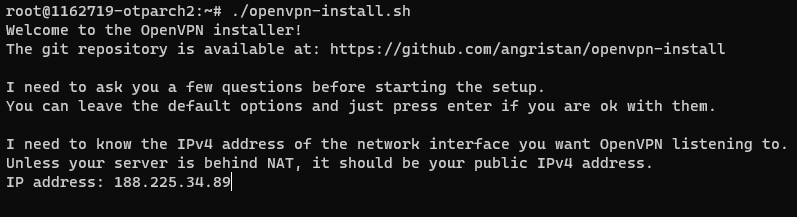
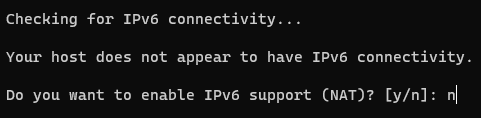
2. Next, the script checks whether to use IPv6. We recommend keeping the default value n:
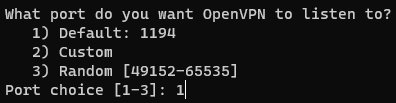
3. Then you can choose the OpenVPN port. We recommend using the default port (1194):
4. Choose the network protocol for OpenVPN. We recommend UDP. Choose TCP only if UDP is not available.

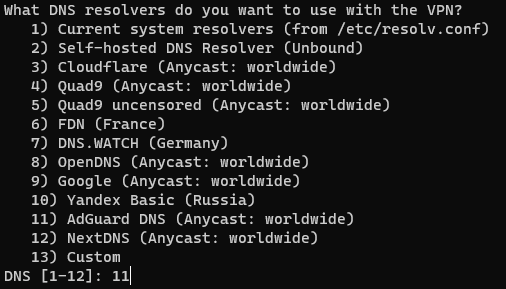
5. Next, you can choose a DNS server. By default, the script suggests AdGuard DNS, which effectively blocks ads.
6. You will be asked whether to use data compression. Because compression may expose you to the VORACLE vulnerability, we recommend choosing "n" (no):

7. You will then be offered the option to change the encryption settings. We recommend using the default values. You can learn more about the security settings here.

8. All settings have been collected:

Press any key to continue the installation.
9. Once the installation is complete, you will be asked to enter a client name for the connection:

10. You can protect the .ovpn configuration file with a password. By default, no password is set:

When the process is finished, the name of the new client (in this case, client0) and the path to the .opvn configuration file (/root/client0.opvn) are displayed:

To connect, download this file to the device where your OpenVPN client is installed and import the configuration file. You can download the file using SFTP, for example.
When you run the script again later, the following options will be available:
- Add another client
- Remove a client
- Remove OpenVPN
To perform these actions, simply follow the setup wizard's instructions.
Setting up clients
Instructions for setting up OpenVPN clients on various devices and operating systems are available online. In most cases, all you need to do is install the client app and import the configuration file.
As an example, let's look at setting up clients on computers running Windows and MacOS.
Windows
- Download the client from the official OpenVPN website: https://openvpn.net/community-downloads/ and install it on your computer.
- After installation, copy the configuration file you received to the C:\Program Files\OpenVPN\config directory.
- Launch OpenVPN. To do this, right-click the program icon and select "Run as administrator". To make OpenVPN always run as administrator, do the following: right-click the program icon, select "Properties", go to the "Compatibility" tab, and check "Run this program as an administrator". Save the changes.
- The first time you launch the program, a window will ask for permission to make changes. Click "Yes".
- Right-click the OpenVPN icon in the notification area, select the profile you need, and click "Connect".
A window with the connection log will open. Once the connection is established, you will see a notification.
To disconnect, click the OpenVPN icon in the notification area again, select the profile you need, and click "Disconnect".
MacOS
- On MacOS, you can use the free Tunnelblick client.
- Download the client from the official Tunnelblick website: https://tunnelblick.net/downloads.html
- Double-click the downloaded file and complete the installation.
- When the installation is finished, answer "No" when asked whether you have configuration files.
- After installation, open Finder and double-click your configuration file. Tunnelblick will install the profile automatically.
To connect, launch Tunnelblick and click its icon at the top of the screen. Then select "Connect" and choose the installed profile.

